
Installing a navigation app on your Toyota is simple and makes every trip smoother. You can use built-in systems or connect your phone for real-time maps. This guide shows you exactly how to do it without stress. Follow these steps, and you will drive with confidence.
Key Takeaways
- Start with your phone: Download the app on your smartphone before connecting to your Toyota.
- Use Apple CarPlay or Android Auto: Most Toyota models support these systems for easy app access.
- Check your car model: Newer Toyotas have built-in navigation, while older ones need phone linking.
- Keep software updated: Regular updates ensure smooth navigation and safer driving.
- Use voice commands: Hands-free control keeps your eyes on the road.
- Plan routes ahead: Save favorite places and check traffic before you drive.
- Troubleshoot easily: Simple fixes like restarting your phone solve most connection issues.
📑 Table of Contents
- Getting Started With Navigation Apps on Toyota
- How to Download Navigation App on Toyota Using Your Phone
- Using Built-In Navigation on Newer Toyota Models
- Apple CarPlay and Android Auto Made Simple
- Troubleshooting Common Connection Problems
- Best Navigation Apps for Toyota Drivers
- Quick Tips for Safer and Smarter Navigation
- Final Thoughts on Using Navigation Apps With Toyota
Getting Started With Navigation Apps on Toyota
Driving without good directions feels stressful. You might miss turns, waste time, or get stuck in heavy traffic. That is why many drivers want to know how to download navigation app on Toyota. The good news is that Toyota makes this process simple. You do not need to be a tech expert. You just need a phone, a steady internet connection, and a few minutes of your time.
Modern Toyotas come with different options. Some models have built-in navigation screens. Others rely on your phone through Apple CarPlay or Android Auto. A few older models may need a small update or an adapter. No matter your car, the goal stays the same. You want clear maps, real-time traffic updates, and easy route planning. This guide walks you through every step in plain language.
Before you begin, make sure your phone has enough storage. You should also check that your Toyota software is up to date. A quick update can fix connection problems and unlock new features. If you are unsure about your model, check your owner manual or visit the Toyota app page. You can also learn how to connect Toyota app to car for extra help with phone pairing.
What You Need Before You Start
You need a few simple tools before you begin. First, grab your smartphone. Second, make sure you have a USB cable or Bluetooth turned on. Third, check that your Toyota display is ready for phone connection. These small steps save time later. You will also want a reliable data plan. Navigation apps use mobile data to show live traffic and road changes.
Keep your car parked while you set things up. Safety comes first. You should never fiddle with screens while driving. Once everything is ready, you can move to the next step with confidence.
How to Download Navigation App on Toyota Using Your Phone
The easiest way to get navigation on your Toyota is through your phone. Most drivers already use Google Maps, Waze, or Apple Maps. These apps work well with Toyota systems. The process is quick and does not require extra hardware. You just need to follow a few clear steps.
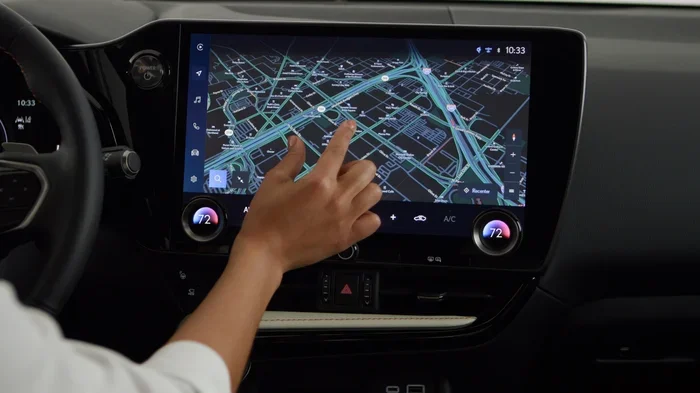
Visual guide about Toyota navigation app interface
Image source: s1.cdn.autoevolution.com
Step One: Install the App on Your Phone
Open the app store on your phone. Search for your preferred navigation app. Tap install and wait for the download to finish. After that, open the app and sign in if needed. You can also allow location access so the app can track your route. This step is simple, but it matters a lot. A fully set up phone makes the car connection much smoother.
Step Two: Connect Your Phone to Toyota
Plug your phone into the USB port using a good cable. If your Toyota supports wireless connection, turn on Bluetooth and follow the on-screen prompts. Your car should recognize the phone quickly. Once connected, you will see the app on your Toyota display. This is where how to download navigation app on Toyota becomes easy in practice. The app does not always need to be downloaded again on the car. In many cases, the car simply mirrors your phone screen.
Step Three: Open the App on the Car Screen
Find the navigation icon on your Toyota display. Tap it and let the app load. You can search for places, check traffic, and choose routes. Use voice commands if your model supports them. This keeps your hands free and your focus on the road. Many drivers find this method the most comfortable because the phone already has their saved places and preferences.
Using Built-In Navigation on Newer Toyota Models
Some Toyota vehicles come with navigation built right into the dashboard. This system works without a phone in many cases. It uses onboard maps and satellite data. If your Toyota has this feature, you may not need to download anything at all. Still, it helps to know how to update and use it well.
Checking If Your Toyota Has Built-In Navigation
Look at your home screen when you start the car. You should see a map icon or a navigation menu. If you see it, your Toyota already has the system. You can enter an address using the touchscreen or voice input. The system will guide you turn by turn. This option is useful when your phone battery is low or when you prefer a larger screen.
Updating Built-In Maps
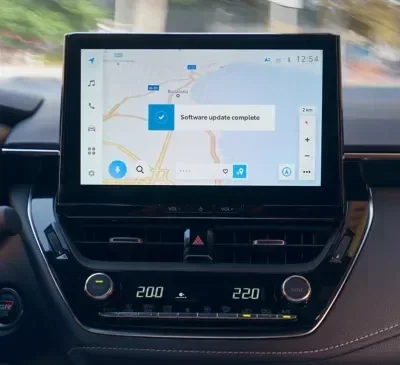
Maps change often. New roads appear, and old routes shift. That is why updates matter. You can update your Toyota navigation through the settings menu or the Toyota app. Some models let you download map updates over Wi-Fi. Others may need a USB update. Check your manual for the exact steps. A fresh map set keeps your trips accurate and smooth.
If you want to learn more about keeping your Toyota systems in top shape, you can also read about how to remove maintenance required on Toyota. Staying on top of alerts and updates helps your car run better overall.
Apple CarPlay and Android Auto Made Simple
Apple CarPlay and Android Auto are two of the most popular ways to use navigation on Toyota. They bring your phone apps to the car screen in a safe, car-friendly format. Many Toyota models support both systems. This makes how to download navigation app on Toyota even easier because you already use these apps on your phone.
How Apple CarPlay Works
Apple CarPlay mirrors selected apps from your iPhone. You can use Apple Maps, Google Maps, or other supported navigation apps. Connect your iPhone with a cable or use wireless CarPlay if your Toyota supports it. The car screen will show a simplified version of the app. You can search destinations, view traffic, and get turn-by-turn directions. Siri can also help with voice commands.
How Android Auto Works
Android Auto does the same for Android phones. It brings Google Maps, Waze, and other apps to your Toyota display. Connect your phone and follow the on-screen setup. The interface is designed for driving. Buttons are larger, and distractions are reduced. You can also use Google Assistant for hands-free control. This is a great choice if you want live traffic updates and route changes while you drive.
Quick Tips for CarPlay and Android Auto
- Use a good cable: A worn cable can cause connection drops.
- Keep apps updated: New versions often fix bugs and improve speed.
- Allow permissions: Location and notification access help the app work properly.
- Try voice commands: They reduce the need to touch the screen.
Troubleshooting Common Connection Problems
Sometimes things do not work right away. That is normal. A weak connection, old software, or a dirty cable port can cause issues. The good news is that most problems have simple fixes. You do not need to panic. Just follow a few easy checks.
Phone Not Connecting
First, check the cable. Try a different one if possible. Make sure your phone is unlocked. Then check the Bluetooth or USB settings on both devices. Restart your phone and your car system. This clears small glitches. If your Toyota uses wireless connection, make sure Bluetooth and Wi-Fi are on. Many connection issues disappear after a quick restart.
App Not Showing on the Screen
If the app does not appear, open it on your phone first. Some systems only mirror apps that are already running. Also, check that the app supports CarPlay or Android Auto. Not every app works with every system. If you still have trouble, remove the phone from the car’s saved devices and pair it again. This fresh start often solves the problem.
Slow or Laggy Display
A slow screen can be frustrating. This may happen if your phone is low on memory or if the app is updating in the background. Close extra apps on your phone. Check for system updates on your Toyota. If your model allows it, clear the car’s temporary cache through the settings menu. These small steps can improve speed.
If you want more help with Toyota tech setup, you can also explore how to remote start Toyota for another useful feature many drivers enjoy.
Best Navigation Apps for Toyota Drivers
Not all navigation apps feel the same. Some focus on speed. Others focus on traffic, fuel stops, or scenic routes. The best app depends on your driving habits. Here are a few popular choices that work well with Toyota systems.
Google Maps
Google Maps is a top pick for many drivers. It offers clear maps, live traffic, and frequent updates. You can save home and work addresses for quick access. It also suggests alternate routes when traffic is heavy. If you already use Google services, this app feels natural and easy.
Waze
Waze is loved for community-based traffic reports. Drivers share alerts about road hazards, police, and delays. This can help you avoid surprises. Waze also reroutes quickly when needed. It is a strong choice if you want real-time crowd updates during busy commutes.
Apple Maps
Apple Maps works well for iPhone users. It has a clean design and good voice guidance. It also integrates smoothly with CarPlay. If you prefer a simple interface and reliable directions, Apple Maps is a solid option.
Other Helpful Apps
- MapQuest: Useful for basic route planning.
- Sygic: Offers offline maps in some versions.
- Here WeGo: Good for downloading maps ahead of time.
The right app is the one that fits your routine. Try one and see how it feels during your daily drives. You can always switch later.
Quick Tips for Safer and Smarter Navigation
Navigation works best when you use it wisely. A few simple habits can make every trip better. These tips help you stay safe and save time. They also make how to download navigation app on Toyota feel even more useful in daily life.
Plan Before You Drive
Set your route before you shift into drive. Check traffic and choose your destination while the car is parked. This reduces stress and keeps your eyes on the road. You can also save favorite places for quick access later. A little planning goes a long way.
Use Voice Guidance
Turn up the voice prompts. Clear audio directions help you stay focused. You do not need to stare at the screen for every turn. If your Toyota supports voice commands, use them often. They make the system feel easier and safer.
Keep Your Phone and Car Updated
Updates improve performance and fix bugs. Check your phone app store regularly. Also, look for Toyota system updates through the settings menu or the Toyota app. Updated software can improve connection stability and map accuracy.
Watch for Battery Drain
Navigation apps use power. Long trips can drain your phone battery faster than expected. Keep a charger in the car. If you use wireless connection, remember that it may use more battery than a cable. A small power bank can also help on long road trips.
Final Thoughts on Using Navigation Apps With Toyota
Learning how to download navigation app on Toyota is not hard once you know the steps. You can use your phone, built-in maps, or car-friendly systems like CarPlay and Android Auto. Each option has its strengths. The best choice depends on your model and your driving style. What matters most is that you get clear directions, reliable traffic updates, and a smoother ride.
Start with a simple setup. Install the app on your phone. Connect it to your Toyota. Test the route while parked. Then enjoy the drive with less worry. Keep your software updated, use voice commands, and plan ahead when you can. These small habits make a big difference. With the right setup, your Toyota becomes a smarter travel companion every time you hit the road.
Frequently Asked Questions
Can I download a navigation app directly to my Toyota screen?
Most Toyota models do not let you download apps directly to the car screen. Instead, you usually install the app on your phone and connect it through Apple CarPlay, Android Auto, or the built-in system. Some newer Toyotas may offer limited app support, so check your model’s features.
Do I need a USB cable to use navigation on Toyota?
Not always. Many Toyotas support wired connection through USB, and some also support wireless CarPlay or Android Auto. A cable is often more stable, but wireless is convenient if your model allows it. Try both methods to see which works best for your car.
Why is my navigation app not showing on the Toyota display?
This usually happens because the app is not open on the phone, the cable is faulty, or the app does not support CarPlay or Android Auto. Restart your phone, check the cable, and open the app before connecting. Re-pairing the phone with the car can also help.
Can I use Google Maps on Toyota?
Yes, Google Maps works well with many Toyota models through Android Auto or Apple CarPlay. You can search places, see traffic, and get turn-by-turn directions on the car screen. Make sure the app is updated and allowed to use your location.
How do I update navigation maps on Toyota?
If your Toyota has built-in navigation, you can update maps through the settings menu or the Toyota app. Some updates download over Wi-Fi, while others may need a USB drive. Phone-based apps update automatically through the app store on your smartphone.
Is it safe to use navigation apps while driving?
It is safe when you use hands-free features and set your route before driving. Use voice commands, turn on audio guidance, and avoid touching the screen while moving. The safest habit is to adjust your destination only when the car is parked.