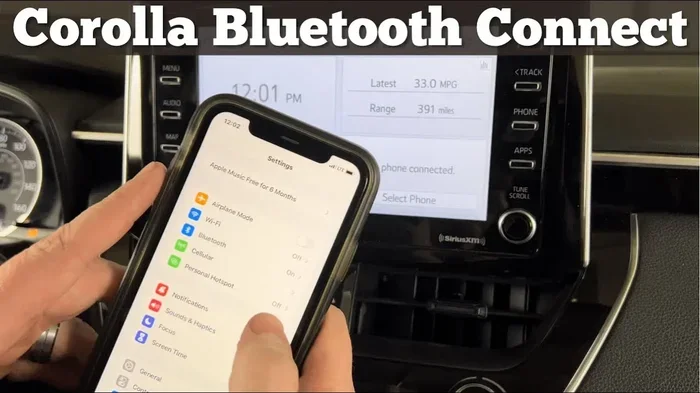
Connecting Bluetooth to your Toyota Corolla is quick and easy when you follow the right steps. You can pair your phone in just a few minutes to enjoy hands-free calling and wireless music streaming. This guide walks you through the exact process, troubleshooting tips, and pro tricks so you never struggle with the system again. Whether you drive a new or older model, you will learn how to connect Bluetooth to Toyota Corolla fast and keep it working smoothly.
Key Takeaways
- Prepare your phone first: Turn on Bluetooth, unlock your screen, and keep your device close to the car before starting the pairing process.
- Use the correct menu path: Navigate to Setup or Phone settings on your Corolla infotainment screen to find the Bluetooth pairing option.
- Match the PIN carefully: Confirm the passkey shown on your car screen matches your phone to avoid pairing errors.
- Clear old connections: Remove outdated paired devices from both your car and phone if you experience connection failures.
- Keep software updated: Update your Corolla system and phone operating system to fix bugs and improve Bluetooth stability.
- Test audio and calls: Verify that music plays through the speakers and calls route correctly after pairing.
- Reset when needed: Use a soft reset of the audio system or phone Bluetooth settings to solve stubborn pairing issues.
📑 Table of Contents
- Why You Want to Connect Bluetooth to Toyota Corolla Fast
- Prepare Your Phone and Car for Pairing
- Step-by-Step Pairing on Most Toyota Corolla Models
- How to Pair When the System Does Not See Your Phone
- Fix Audio, Calls, and Media Routing Problems
- Keep Your Bluetooth Connection Reliable Over Time
- When to Reset the System and Start Fresh
- Final Thoughts on Pairing Your Corolla Bluetooth
Why You Want to Connect Bluetooth to Toyota Corolla Fast
Driving should feel smooth and simple. When your phone pairs quickly, you gain hands-free calling, clear voice commands, and easy music control. You also reduce distractions because you do not need to fumble with cables while moving. A fast Bluetooth connection helps you stay focused on the road and enjoy your commute.
Many Corolla owners notice that the pairing process feels confusing at first. The menu labels can vary by model year. Some screens use Setup, while others use Phone or Bluetooth settings. Once you understand the general flow, the process becomes very easy. You just need to prepare your phone, follow the on-screen prompts, and confirm the connection.
This guide shows you exactly how to connect Bluetooth to Toyota Corolla fast. You will learn the basic steps, smart troubleshooting tricks, and best practices for daily use. You will also see how to handle common problems like failed pairing, dropped calls, and audio routing issues. By the end, you will feel confident every time you get behind the wheel.
Prepare Your Phone and Car for Pairing
A smooth connection starts before you touch the infotainment screen. A few simple preparations save time and prevent errors. Use this quick checklist before you begin.
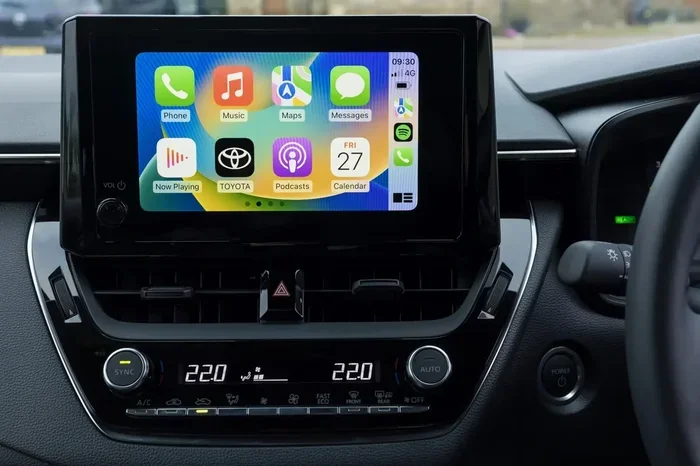
Visual guide about Toyota Corolla Bluetooth phone
Image source: parkers-images.bauersecure.com
Turn on Bluetooth and Keep Your Phone Unlocked
Open your phone settings and enable Bluetooth. Keep your screen unlocked during pairing because some systems cannot see a locked device. Place your phone near the dashboard so the car can detect it quickly. If your phone recently connected to another vehicle, turn off that vehicle Bluetooth first. This step avoids confusion and competing signals.
Check Your Corolla Infotainment Mode
Make sure your car is in a ready state. In many models, you can pair while parked or with the engine running. If your screen stays dark, check whether the vehicle is in accessory mode. A quick press of the power button often wakes the system. Once the screen lights up, look for the phone or setup menu.
Reduce Interference
Turn off unused wireless features if you notice delays. Wi-Fi, hotspots, and multiple nearby Bluetooth devices can sometimes slow discovery. If you have several phones in the car, pause the ones you do not need. This small step helps the system focus on the device you want to pair.
Quick Tips for a Faster Start
- Keep your phone close to the dashboard during discovery.
- Use a clean phone screen with notifications paused.
- Pair in a quiet parking area if the signal feels weak.
- Make sure your car battery is healthy if the system feels slow.
Step-by-Step Pairing on Most Toyota Corolla Models
The exact labels may differ slightly, but the core process stays similar across many Corolla generations. Follow these steps and you should pair your phone without stress.
Open the Bluetooth Menu on the Car Screen
On the home screen, tap Setup or Phone, depending on your model. Then select Bluetooth or Bluetooth Device List. Look for an option that says Add Device, Pair Phone, or Register Device. This is where the car starts searching for nearby phones.
Start Discovery on Your Phone
Your car may show a name or a pairing prompt. On your phone, wait for Toyota Corolla or a similar device name to appear in the Bluetooth list. Tap it when it shows up. If the car asks you to confirm a passkey, check that the numbers match on both screens.
Confirm the Connection
Once you tap pair, the car may display a PIN or confirmation code. Compare it with the code on your phone. If they match, approve the pairing on both devices. Some systems ask whether you want to allow phone calls, media audio, and contacts. Enable the options you need so the connection works fully.
Finish and Test the Link
After pairing, the car usually shows your phone in the device list. Select it as the active device if needed. Play a song and make a test call to confirm everything works. If audio plays through the speakers and calls come through clearly, you are all set.
If you want a deeper walkthrough for your exact model, you can also review our guide on how to connect Toyota app to car for related setup help.
How to Pair When the System Does Not See Your Phone
Sometimes the car cannot find your phone, or your phone cannot find the car. This issue usually comes from discovery settings, old pairings, or a temporary system glitch. Use these steps to fix it.
Clear Old Paired Devices
If your Corolla already stores several phones, the system may struggle to add another one. Go to the Bluetooth device list and remove devices you no longer use. Do the same on your phone by forgetting old car connections. A cleaner list often improves discovery speed.
Reset Bluetooth on Both Devices
Turn Bluetooth off on your phone, wait a few seconds, and turn it back on. In the car, exit the Bluetooth menu and reopen it. If the system feels stuck, a short restart of the infotainment screen can help. Some drivers also find that turning the car off and back on clears the error.
Check for Naming or Visibility Issues
Make sure your phone is set to be discoverable. Some phones hide this option when Bluetooth has been on for a long time. If your phone uses a custom name, try a simple name without special characters. That can make the device easier for the car to recognize.
Common Mistakes to Avoid
- Trying to pair with the phone locked.
- Keeping multiple devices in discovery mode at once.
- Ignoring the car prompt and tapping the wrong device.
- Skipping the PIN confirmation step.
If you still cannot pair, a full system reset may help. You can also look at our article on how to clear Toyota maintenance light for general system reset habits that many owners find useful.
Fix Audio, Calls, and Media Routing Problems
Pairing is only the first step. After connection, you want calls, navigation prompts, and music to work the right way. If one feature works but another does not, the issue is often audio routing or profile settings.
Make Sure Media Audio Is Enabled
When you pair, your car may ask about call audio and media audio separately. If music does not play through the speakers, check whether media audio is turned on. Open your phone Bluetooth settings, tap the Corolla device, and enable media sharing if it is off.
Check Call Audio Settings
If calls still come through the phone speaker, verify that call audio is enabled in the same Bluetooth settings. Also make sure your phone is not set to route calls to a headset or another device. The car should appear as the main audio output during a call.
Watch for Profile Conflicts
Some phones try to use multiple Bluetooth profiles at once. That can cause strange behavior, such as music stopping when a notification arrives. If this happens, try pausing message previews or disabling unnecessary sharing options during driving. A simpler profile setup often improves reliability.
Quick Testing Routine
- Play a track and confirm the sound comes from the car speakers.
- Make a test call and check that voice audio uses the car system.
- Ask a friend to call you while you drive to verify hands-free behavior.
- Check volume levels for both media and calls separately.
If you notice repeated audio dropouts, your phone case may be blocking the signal. A thick metal case can sometimes interfere with Bluetooth performance. Removing the case during pairing and testing can reveal the problem quickly.
Keep Your Bluetooth Connection Reliable Over Time
A good connection should stay stable after pairing. You can protect that reliability with a few simple habits. These small steps help your Corolla and phone work well together for the long term.
Update Your Phone and Car Software
Phone updates often improve Bluetooth performance and fix pairing bugs. Car system updates can also improve stability. If your Corolla supports system updates, check for them during routine maintenance visits or through the manufacturer app if available. Keeping both devices current reduces strange behavior.
Manage Paired Devices Wisely
Do not leave dozens of old devices in the car list. Remove phones, tablets, and accessories you no longer use. On your phone, delete old car pairings when you sell the vehicle or stop driving it. Clean lists make discovery faster and reduce connection conflicts.
Use Consistent Driving Habits
Try to pair the same phone most of the time. Constant switching between many devices can make the system slower to respond. If you share the car, set a clear order for pairing and disconnecting. That habit keeps the experience smooth for everyone.
Expert Insights for Better Performance
- Pair in the same area each time if possible.
- Keep the infotainment screen active during setup.
- Avoid pairing while the car battery is very low.
- Re-pair after major phone updates if the connection feels off.
Many owners also like to keep their car organized with routine checks. If you want to learn more about regular Corolla care, you can read our piece on how often to change cabin air filter Toyota for another simple maintenance habit.
When to Reset the System and Start Fresh
Sometimes the fastest solution is a clean restart. If pairing keeps failing, the connection drops often, or the menu feels unresponsive, a reset can save time. You do not need to panic. Most issues are solvable with a careful reset.
Soft Reset the Infotainment System
A soft reset usually means restarting the car audio system without losing all settings. In many vehicles, this can be done by turning the car off, waiting briefly, and restarting. If your model has a specific reset method, follow the vehicle instructions. This step often clears temporary glitches.
Forget the Device and Re-Pair
If the car sees your phone but refuses to connect, remove the device from the car list. Then forget the car on your phone as well. After that, start over from the beginning. A fresh pairing often works better than trying to repair a broken link.
Check for Hardware or Antenna Issues
If problems continue after several attempts, there may be a deeper issue. Weak speakers, damaged antennas, or electrical quirks can affect Bluetooth behavior. In that case, a professional inspection may be the best next step. If you suspect a broader electrical concern, you can also review our guide on how to open hood of Toyota Corolla so you can check basic engine bay visibility safely.
Common Mistakes During Reset
- Resetting repeatedly without removing old pairings.
- Skipping the test step after re-pairing.
- Assuming one device is at fault without checking the other.
- Forgetting to re-enable call and media audio after pairing again.
Final Thoughts on Pairing Your Corolla Bluetooth
Learning how to connect Bluetooth to Toyota Corolla fast is mostly about preparation, patience, and a clean setup. Once you know the menu path and the basic confirmation steps, the process becomes quick and repeatable. You get hands-free calling, easier music control, and a safer driving experience.
Remember to keep your phone discoverable, remove old devices you no longer use, and test both calls and media after pairing. If something goes wrong, a simple reset or re-pair usually solves the issue. With these habits, your Corolla Bluetooth connection will feel smooth every time you start the car.
Frequently Asked Questions
How do I put my Toyota Corolla Bluetooth in pairing mode?
Open the Phone or Setup menu on your Corolla screen and choose the option to add or register a new device. Then turn on Bluetooth on your phone and wait for the car name to appear in the list. Tap the car name and confirm the passkey if prompted.
Why will my phone not connect to my Toyota Corolla Bluetooth?
This usually happens because Bluetooth is off, the phone is locked, or old pairings are causing a conflict. Try forgetting old devices on both the car and phone, then pair again with the screens unlocked. A quick restart of the infotainment system can also help.
Can I connect two phones to Toyota Corolla Bluetooth?
Many Corolla systems allow more than one paired phone, but only one device usually stays active for calls or media at a time. If you want to switch phones, select the desired device from the Bluetooth device list. Remove unused phones if the list gets too crowded.
Why does music play but calls do not use the car speakers?
This often means call audio is disabled in the Bluetooth settings even though media audio is on. Check your phone Bluetooth device settings and enable call audio for the Corolla connection. Also make sure no headset or another device is taking priority.
Do I need to pair my phone every time I drive?
No, once paired, your phone should reconnect automatically when Bluetooth is on and the car system is active. If it does not, check whether the phone has forgotten the device or whether the car selected a different phone. Re-pairing usually solves the problem if auto-connection stops working.
What should I do if my Corolla Bluetooth keeps disconnecting?
Start by removing the device from both the car and phone, then pair again from scratch. Keep your phone near the dashboard and avoid thick cases that may block the signal. If the issue continues, update your phone software and check for infotainment system updates.