
Connecting your phone to your car is easy. You just need to follow a few simple steps to pair your device. This guide shows you how to connect Bluetooth to a Toyota Camry without stress. You will enjoy hands-free calling and music in no time.
Key Takeaways
- Preparation Matters: Ensure your phone and car are ready before starting the pairing process.
- System Access: You must navigate the Toyota touchscreen menu to find Bluetooth settings.
- Pairing Mode: Put your phone in discovery mode to let the car find it.
- Verification: Always confirm the code on both screens to ensure a secure connection.
- Audio Setup: Select the correct audio source to play music through the car speakers.
- Troubleshooting: Delete old devices if you face connection errors or failures.
- Safety First: Use hands-free features to stay focused on the road while driving.
📑 Table of Contents
Getting Started with Bluetooth on Your Camry
Driving a Toyota Camry is a great experience. You want to stay connected while you drive. Bluetooth connectivity makes this possible. It allows you to make calls safely. You can also play your favorite music. This guide helps you set it up.
Many people find car technology confusing. You do not need to be a tech expert. The process is straightforward. We will walk you through every step. You will learn how to pair your phone. We will also cover common issues. Let us get your devices talking to each other.
Before you start, check your phone. Make sure your phone has Bluetooth. Most modern smartphones do. You also need to ensure your Camry model supports it. Most newer models have this feature. It is usually found in the multimedia system.
Accessing the Bluetooth Menu on the Touchscreen
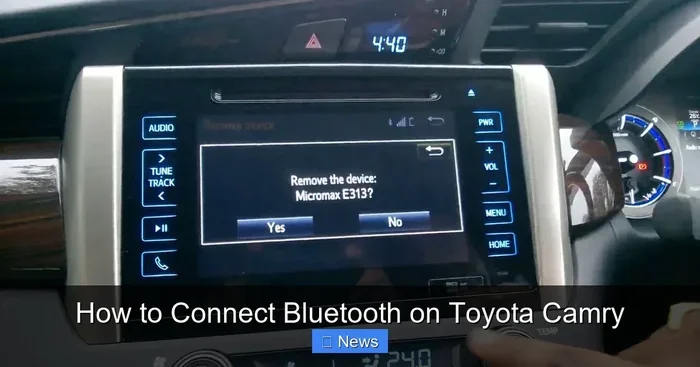
The first step is finding the right menu. You need to use the car’s touchscreen. This is the main hub for settings. Look for the settings icon on the display. It often looks like a gear or wrench.
Visual guide about Toyota Camry Bluetooth phone
Image source: toyotaautodealer.com
Once you tap settings, look for Bluetooth options. The menu might say “Phone” or “Bluetooth.” Tap on that option. You will see a list of devices. If no devices are connected, it will be empty. This is where you start the pairing process.
Some models have a dedicated phone button. This button might be on the steering wheel. Pressing it can take you straight to the phone menu. This saves you time navigating menus. Check your steering wheel for a phone icon.
Navigating System Settings
You might need to dig deeper. Sometimes the Bluetooth setting is under “Connectivity.” This is common in newer Toyota models. You want to ensure the Bluetooth function is turned on. If it is off, the car cannot find your phone.
Look for a toggle switch. Slide it to the “On” position. The screen should confirm the change. You are now ready to add a new device. The system will prompt you to search for phones.
Pairing Your Phone with the Car System
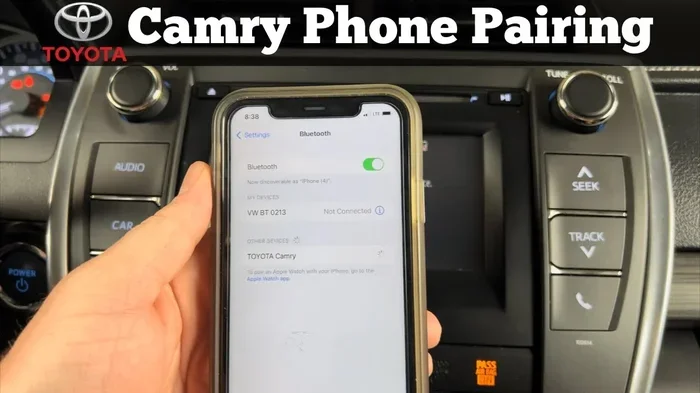
Now comes the main part. You need to pair your phone. This creates a secure link between the two. Start by turning on Bluetooth on your phone. Go to your phone’s settings menu. Find the Bluetooth section and tap it.
Your phone will start scanning. It looks for nearby devices. Meanwhile, go back to your Camry screen. Select “Add New Device” or “Pair Phone.” The car will start searching too. You need both devices searching at the same time.
You should see your car’s name on your phone. It might say “Toyota Camry” or a specific code. Tap on that name. The car screen will show a PIN code. This is a security measure. It ensures you are connecting to the right car.
Confirming the Connection Code
Check the PIN on your phone. It should match the car screen. If they match, confirm the connection. You might need to tap “Pair” on both devices. Once confirmed, the devices will link up.
You will see a success message. The car might beep or show a checkmark. Your phone will also say “Connected.” This means the Bluetooth pairing is complete. You can now use phone features through the car.
Setting Up Hands-Free Calling and Audio
Pairing is only the first step. You need to set up how the audio works. Go to the phone settings in the car again. Look for “Call Settings” or “Audio Source.” You want to enable hands-free calling.
This allows you to answer calls without touching your phone. The car microphone will pick up your voice. The speakers will play the caller’s voice. This is much safer than holding a phone. It keeps your eyes on the road.
For music, you need to select the audio source. When you play music on your phone, the car needs to know where to send the sound. Choose “Bluetooth Audio” from the source list. Now your music will play through the car speakers.
Managing Contact Access
You might want your contacts on the car screen. This lets you see who is calling. The car system will ask for permission. Allow access to your contacts. This makes calling easier. You can dial numbers using the touchscreen.
Some systems allow you to sync recent calls. This helps you return calls quickly. Check these options in the menu. Customize the settings to fit your needs. Everyone uses their phone differently.
Troubleshooting Connection Issues
Sometimes things do not work perfectly. You might face connection errors. Do not worry. This is common. There are simple fixes for most problems. First, check if Bluetooth is on. It is easy to forget to turn it on.
If the car does not find your phone, restart both. Turn off the car engine. Turn off your phone. Wait a few seconds. Turn them back on. Try pairing again. This clears temporary glitches.
Another issue is too many devices. The car might have a limit. It can only remember so many phones. If you have old phones paired, delete them. Go to the Bluetooth list in the car. Select the old device and choose “Delete.”
Resetting Bluetooth Settings
If problems persist, reset the system. Look for a “Reset” option in the settings. This clears all paired devices. You will need to pair again. This often fixes stubborn connection issues. It is like starting fresh.
Check for software updates too. Toyota sometimes releases updates for the multimedia system. These updates fix bugs. Visit a Toyota dealer if you are unsure. They can check the system version for you.
Tips for a Better Bluetooth Experience
To get the best experience, keep your phone close. Bluetooth range is limited. If your phone is in your bag, it might disconnect. Keep it near the dashboard. This ensures a stable signal.
Also, manage your notifications. You do not want every text message read aloud while driving. Some cars allow you to filter notifications. Set this up in the phone settings. Only allow important alerts. This reduces distractions.
Keep your phone battery in mind. Bluetooth uses power. If your battery is low, it might affect connectivity. Charge your phone before long drives. This prevents interruptions during your trip.
Expert Insights on Connectivity
Experts suggest updating your phone software. Old phone software can cause pairing issues. Keep your iOS or Android updated. This ensures compatibility with the car system. It is a simple step that helps a lot.
Another tip is to name your device clearly. When you pair, you can name the connection. Use your name or car model. This makes it easier to identify later. It helps when you have multiple cars or phones.
Safety and Best Practices
Using Bluetooth is safer than texting. But you should still focus on driving. Set up your music before you start driving. Do not fiddle with settings while moving. Pull over if you need to change settings.
Use voice commands if your Camry has them. You can say “Call Home” instead of typing. This keeps your hands on the wheel. It is the safest way to use phone features. Learn the voice commands for your model.
Remember that laws vary by location. Some places have strict hands-free laws. Using Bluetooth helps you follow these laws. It keeps you legal and safe. Always prioritize driving over phone usage.
Conclusion
You now know how to connect Bluetooth to a Toyota Camry. It is a simple process that adds great convenience. You can make calls and play music safely. Follow the steps we outlined above.
Remember to troubleshoot if you face issues. Resetting the system often helps. Keep your devices updated for the best performance. Enjoy your connected driving experience. It makes every trip better.
Stay safe on the road. Use your technology wisely. Your Camry is designed to help you. Make the most of its features. Happy driving!
Frequently Asked Questions
How do I reset Bluetooth on my Toyota Camry?
Go to the settings menu on your touchscreen. Select Bluetooth and choose the option to delete all paired devices. You may need to restart the car system to complete the reset.
Why is my phone not connecting to the Camry?
Ensure Bluetooth is enabled on both your phone and the car. Check if you have reached the maximum number of paired devices. Restarting both devices often solves this issue.
Can I play music through Bluetooth on a Toyota Camry?
Yes, once paired, you can select Bluetooth Audio as your source. This allows you to stream music from your phone through the car speakers. Make sure your phone volume is turned up.
How do I answer calls using Bluetooth in my Camry?
You can answer calls using the steering wheel controls or the touchscreen. The car will announce the caller ID if contacts are synced. Use the green button to accept the call.
Does every Toyota Camry model have Bluetooth?
Most newer models come with Bluetooth standard. Older models might require an aftermarket upgrade. Check your specific model year specifications to confirm availability.
How do I disconnect my phone from the Camry Bluetooth?
Go to the Bluetooth settings on your phone and select “Forget This Device.” You can also delete the phone from the car’s paired device list in the settings menu.