
Connecting your phone is easier than you think. This guide shows you exactly how to pair Toyota Bluetooth for smooth music and calls. We cover models from Corolla to Camry. You will learn troubleshooting tips too. Get ready for a safer drive.
Key Takeaways
- Preparation matters: Clean your phone contacts and ensure Bluetooth is on.
- Location varies: The pairing button is usually in the multimedia screen settings.
- Passkey is key: Most Toyota models use a generic PIN like 0000 or 1234.
- Troubleshooting helps: Reset connections if your device does not show up.
- Safety first: Pair your phone before driving to avoid distractions.
- Multimedia system: The screen interface controls most pairing actions.
- Hands-free calling: Pairing enables safe communication while on the road.
📑 Table of Contents
- How to Pair Toyota Bluetooth for Seamless Audio Streaming
- Preparing Your Phone and Vehicle
- Step-by-Step Pairing Process
- Understanding the Passkey and PIN
- Troubleshooting Connection Issues
- Model-Specific Tips and Variations
- Maximizing Your Bluetooth Experience
- Common Mistakes to Avoid
- Expert Insights for Better Connectivity
- Conclusion
How to Pair Toyota Bluetooth for Seamless Audio Streaming
Do you love listening to music while you drive? Do you want to make calls without holding your phone? Toyota Bluetooth connectivity makes this possible. It keeps your hands on the wheel and your eyes on the road. But setting it up can feel confusing at first.
Many drivers struggle with the menu options. Some cannot find the right settings. Others face connection errors. This guide removes that stress. We will walk you through every step. You will learn how to pair Toyota Bluetooth quickly. Let us get your car ready for the road.
Preparing Your Phone and Vehicle
Before you start, you need to get ready. A little prep work saves time. You do not want to fiddle with settings while driving. Safety is the most important thing. Here is what you should do first.
Visual guide about Toyota car Bluetooth pairing
Image source: toyotaautodealer.com
Check Your Phone Settings
Your phone must be ready to connect. Go to your settings menu. Find the Bluetooth option. Turn it on. Make sure your phone is visible to other devices. This allows the car to see your phone.
Also, clear old connections if needed. Sometimes phones hold onto old car data. This can cause conflicts. A quick restart of your phone helps too. It refreshes the system.
Start Your Toyota Vehicle
You need power for the multimedia system. Start the engine or put the car in accessory mode. The screen needs to light up. Look for the home button or menu icon. This is your starting point.
Ensure your car is in a safe spot. Do not try this while moving. Park in your driveway or a parking lot. This keeps you safe. It also reduces stress.
Step-by-Step Pairing Process
Now you are ready to connect. The process is similar for most Toyota models. Whether you drive a Corolla or a Camry, the steps are close. Follow this simple list to succeed.
Here is the basic process:
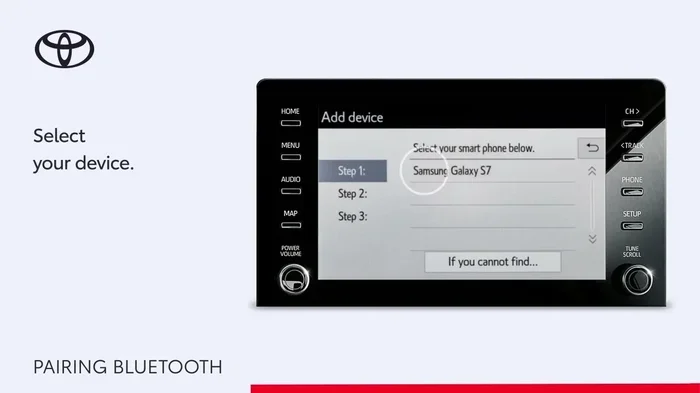
- Turn on your car multimedia system.
- Select the Bluetooth icon on the screen.
- Choose the option to add a new device.
- Look for your phone name on the list.
- Select your phone to start pairing.
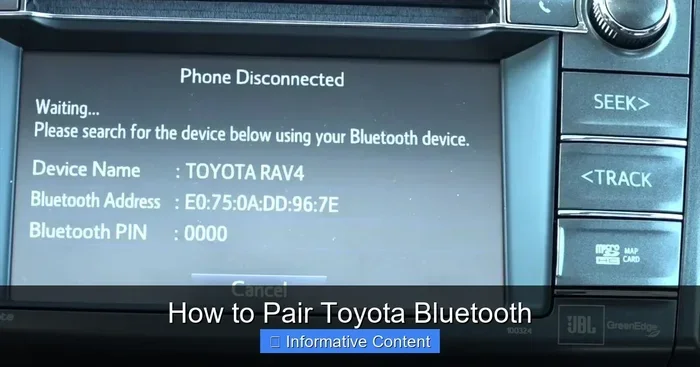
- Enter the passkey if prompted.
- Confirm the connection on both devices.
Once done, your phone should show as connected. You will hear a confirmation sound. The screen will display your phone name. Now you can play music or make calls.
Understanding the Passkey and PIN
Many people get stuck at the PIN screen. This is a security step. It ensures only authorized devices connect. Toyota usually uses a standard code. You do not need to guess wildly.
Common Passkey Codes
Most Toyota vehicles use 0000 or 1234. Some newer models might not ask for a code at all. They pair automatically after you confirm. If you see a prompt, try these common numbers first.
Check your owner manual too. It lists the specific code for your car. Keep this code handy. You might need it for future connections.
What If the Code Fails?
If the code does not work, do not panic. Reset the Bluetooth system. Turn the car off and on again. Try pairing once more. Sometimes the system just needs a fresh start.
You can also forget the device on your phone. Go to your phone Bluetooth settings. Select your car and choose forget. Then try the pairing process again. This clears any bad data.
Troubleshooting Connection Issues
Sometimes things do not go smoothly. Technology can be tricky. You might see error messages. Your phone might not appear in the list. Here are some common fixes.
Device Not Showing Up
If your phone is missing, check visibility. Ensure Bluetooth is still on. Move closer to the car. Sometimes distance matters. Turn off other Bluetooth devices nearby. Too many signals can cause interference.
You might also need to update your phone software. Old software can cause bugs. Check for updates in your phone settings. Install them and try again.
Audio Streaming Problems
Connected but no music? Check the audio source. Make sure the car is set to Bluetooth audio. Sometimes it stays on radio or AUX. Switch the source manually.
Volume settings matter too. Check both phone volume and car volume. Ensure media audio is enabled on your phone. Some phones separate call audio from media audio.
Model-Specific Tips and Variations
Toyota makes many different cars. Each one might have slight differences. Knowing your model helps. You can find specific guides online. For example, if you drive a Camry, you might want to see how to connect Bluetooth to Toyota Camry. This ensures you get the exact steps for your dashboard.
Corolla owners have their own setup too. The screens look similar but menus differ. You can check how to connect Bluetooth to Toyota Corolla for details. This saves you time searching through menus.
Other Toyota cars work similarly. The main idea is the same. Find the Bluetooth menu. Select add device. Confirm the connection. Always refer to your specific model guide if stuck.
Maximizing Your Bluetooth Experience
Once paired, you can do more. Bluetooth is not just for music. It helps you stay organized and safe. Explore the features in your multimedia system.
Hands-Free Calling Benefits
Safety is the biggest win. You can answer calls without touching your phone. The car microphone picks up your voice. The speakers play the caller. This keeps your focus on driving.
You can also see call logs on the screen. Some systems show contact names. This makes calling easier. You do not need to dial manually. Just select the contact.
Audio Quality and Settings
Music sounds better with good settings. Adjust the equalizer if your car has one. Boost the bass or treble to your liking. This makes your playlists sound great.
Keep your phone charged too. Streaming uses battery. Plug into the USB port if available. This ensures your phone lasts all day. You do not want it to die mid-drive.
Common Mistakes to Avoid
People make errors when pairing. Avoiding these saves frustration. Learn from common pitfalls. This keeps your connection stable.
- Pairing while driving: This is dangerous and distracting.
- Ignoring updates: Old software causes connection drops.
- Too many devices: Clear old pairings to avoid conflicts.
- Wrong audio source: Always select Bluetooth audio for music.
- Forgetting the PIN: Write down the code if your car uses one.
Take your time during setup. Rushing leads to mistakes. Follow the steps calmly. You will get it right.
Expert Insights for Better Connectivity
Experts suggest regular maintenance for your car tech. Just like oil changes, software needs care. Reset your Bluetooth system occasionally. This clears memory clutter. It keeps performance sharp.
Also, keep your phone updated. Manufacturers release fixes for connectivity. These updates help pairing stability. Install them when you can. A little care goes a long way.
If you have multiple phones, manage them well. Too many paired devices can confuse the system. Remove phones you do not use. This keeps the list clean. It makes finding your phone faster.
Conclusion
Connecting your phone is simple once you know the steps. How to pair Toyota Bluetooth is a skill every driver should have. It improves safety and enjoyment on the road. You get hands-free calls and great music.
Remember to prep your phone first. Follow the menu steps carefully. Use the right passkey. Troubleshoot if needed. Your Toyota multimedia system is powerful. Use it to its full potential.
Now you are ready to drive. Enjoy your connected car experience. Stay safe and keep the music playing. Your journey just got better.
Frequently Asked Questions
Why won’t my phone connect to Toyota Bluetooth?
Check if Bluetooth is on and your phone is visible. Restart both the car and phone. Sometimes forgetting the device and re-pairing fixes the issue.
What is the default Bluetooth PIN for Toyota?
Most Toyota models use 0000 or 1234 as the default PIN. Check your owner manual for the specific code for your vehicle.
Can I pair multiple phones to my Toyota?
Yes, most Toyota multimedia systems allow multiple paired devices. However, only one phone can stream audio at a time.
How do I reset Toyota Bluetooth settings?
Go to the Bluetooth menu on your car screen. Select the option to delete all paired devices or reset the system. You may need to re-pair afterward.
Why is there no sound from Bluetooth audio?
Ensure the audio source is set to Bluetooth on the car screen. Check your phone volume and make sure media audio is enabled in Bluetooth settings.
Do I need to pair every time I drive?
No, once paired, your phone should connect automatically when you start the car. You only need to pair again if you delete the device or change phones.